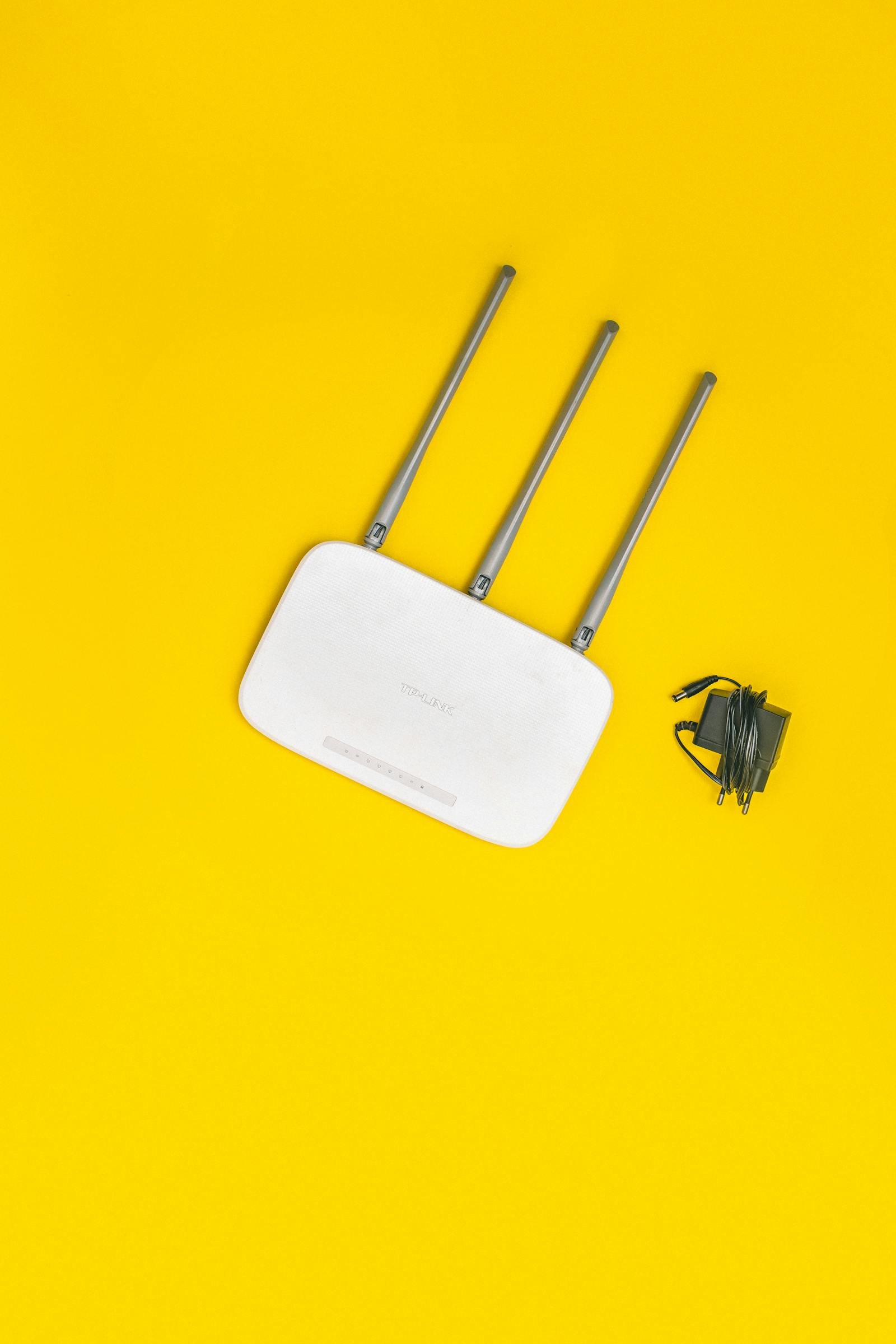
How to Secure Your Home Wi-Fi Network in 15 Minutes
Your home Wi-Fi network is probably less secure than you think. Most people set up their router the day they get it, pick a password they can remember, and never touch the settings again. That was me until I ran a basic network scan and found three devices I didn't recognize connected to my network.
Turns out my neighbor's kid had been using my internet for months. That's annoying, but not dangerous. What is dangerous is that an unsecured home network is an open invitation for anyone within range to intercept your traffic, access your smart home devices, or use your connection for activities you'd rather not be associated with.
The good news: securing your Wi-Fi properly takes about 15 minutes. Here's exactly how to do it, step by step.
Step 1: Access Your Router's Admin Panel (2 minutes)
Every router has a web-based admin panel. To access it:
Open a browser and type your router's IP address. The most common ones are 192.168.1.1 or 192.168.0.1. If neither works, open a command prompt (Windows) or Terminal (Mac) and type ipconfig (Windows) or ifconfig (Mac) — look for "Default Gateway."
You'll need the admin username and password. If you've never changed it, check the sticker on the bottom of your router. Common defaults are admin/admin or admin/password. If you can't find it, search "[your router model] default password" online.
If your login is still the default, that's your first security hole. Anyone who can connect to your network can access your router settings.
Step 2: Change the Default Admin Credentials (1 minute)
Once you're in, find the administration or system settings section. Change both the username (if your router allows it) and the password. Use something strong — at least 12 characters with a mix of letters, numbers, and symbols.
Write this down and store it somewhere safe. Not on a sticky note attached to the router. A password manager is ideal, but a note in your phone's secure notes app works too.
Step 3: Update Your Wi-Fi Password and Encryption (2 minutes)
Navigate to the wireless settings section. You need to check two things:
Encryption type: This should be set to WPA3 if your router supports it, or WPA2 at minimum. If you see WEP or "Open," change it immediately. WEP was cracked over a decade ago and offers essentially zero protection.
Password: Your Wi-Fi password should be at least 12 characters. Avoid dictionary words, birthdays, or anything guessable. A passphrase like "correct-horse-battery-staple" is both strong and memorable. Don't use the password printed on the router sticker — those are often generated from predictable patterns.
Step 4: Change Your Network Name (SSID) (1 minute)
Your network name shouldn't reveal your router model (like "NETGEAR-5G" or "TP-Link_A4F2"). Knowing the model helps attackers target known vulnerabilities for that specific device.
Pick something that doesn't identify you personally either. "SmithFamily5G" tells a potential attacker whose network it is. Something generic or humorous works fine — just avoid anything that broadcasts personal information.
Step 5: Update Your Router's Firmware (3 minutes)
Router manufacturers regularly release firmware updates that patch security vulnerabilities. Most people never install them.
Look for a "Firmware Update" or "System Update" section in your admin panel. Many modern routers can check for updates automatically. Click the check button and install whatever's available.
If your router is more than 5-6 years old and no longer receives firmware updates, seriously consider replacing it. An unpatched router is a permanent security hole in your network.
Step 6: Disable WPS (1 minute)
Wi-Fi Protected Setup (WPS) was designed to make it easy to connect devices by pushing a button or entering a PIN. The problem is that the PIN method is vulnerable to brute-force attacks. An attacker can crack a WPS PIN in hours.
Find the WPS setting in your wireless configuration and turn it off. Yes, it's slightly less convenient to connect new devices. No, the convenience is not worth the security risk.
Step 7: Set Up a Guest Network (2 minutes)
Most modern routers support guest networks. Set one up with a different password and give it to visitors, smart home devices, and anything you don't fully trust.
A guest network is isolated from your main network. If a visitor's infected laptop connects to your guest network, it can't reach your personal computer, NAS drive, or other devices on your primary network.
This is especially important for IoT devices like smart bulbs, cameras, and voice assistants. These devices are notorious for poor security. Keep them on the guest network where they can access the internet but nothing else.
Step 8: Disable Remote Management (1 minute)
Remote management allows you to access your router's admin panel from outside your home network. Unless you have a specific reason to need this (most people don't), turn it off.
If remote management is enabled, anyone on the internet can attempt to log into your router. Combined with default credentials or a weak password, this is how routers get compromised remotely.
Step 9: Review Connected Devices (2 minutes)
Look for a "Connected Devices" or "Client List" section in your admin panel. Go through every device and make sure you recognize each one.
If you see something unfamiliar, don't panic immediately — it might be a device you forgot about, like a smart plug or an old tablet. But if you genuinely can't identify a device, change your Wi-Fi password. That will kick everything off, and only devices with the new password can reconnect.
What You've Just Done
In about 15 minutes, you've:
- Locked down admin access to your router
- Encrypted your network with modern standards
- Removed identifying information from your network name
- Patched known security vulnerabilities via firmware updates
- Closed the WPS attack vector
- Isolated untrusted devices on a guest network
- Disabled remote attack surfaces
- Audited who's actually on your network
This won't make you unhackable — nothing will. But it takes you from "easy target" to "not worth the effort" for the vast majority of attackers. And in home network security, that's usually all you need.
Set a calendar reminder to check your router settings every six months. Firmware updates, connected device audits, and password rotations don't take long but make a meaningful difference.
📚 Related reading:
— Perspective from managing production access and credentials for multiple web properties and 50+ client systems at Warung Digital Teknologi (wardigi.com) over 11+ years.
Found this helpful?
Subscribe to our newsletter for more in-depth reviews and comparisons delivered to your inbox.